Introduction
If you’ve just bought a Brother printer, you may be wondering where to start. Brother printers are popular for homes, offices, and schools because they are affordable, reliable, and versatile. Whether you’re using a simple inkjet, a monochrome laser, or an all-in-one model with scanning and copying features, knowing how to work a Brother printer makes your printing experience smooth.
Many users search for this guide because:
- 📦 They are new users setting up a Brother printer for the first time.
- ⚠️ They’re facing common errors like paper jams or Wi-Fi issues.
- 📱 They want to know how to connect mobile devices or laptops for easy printing.
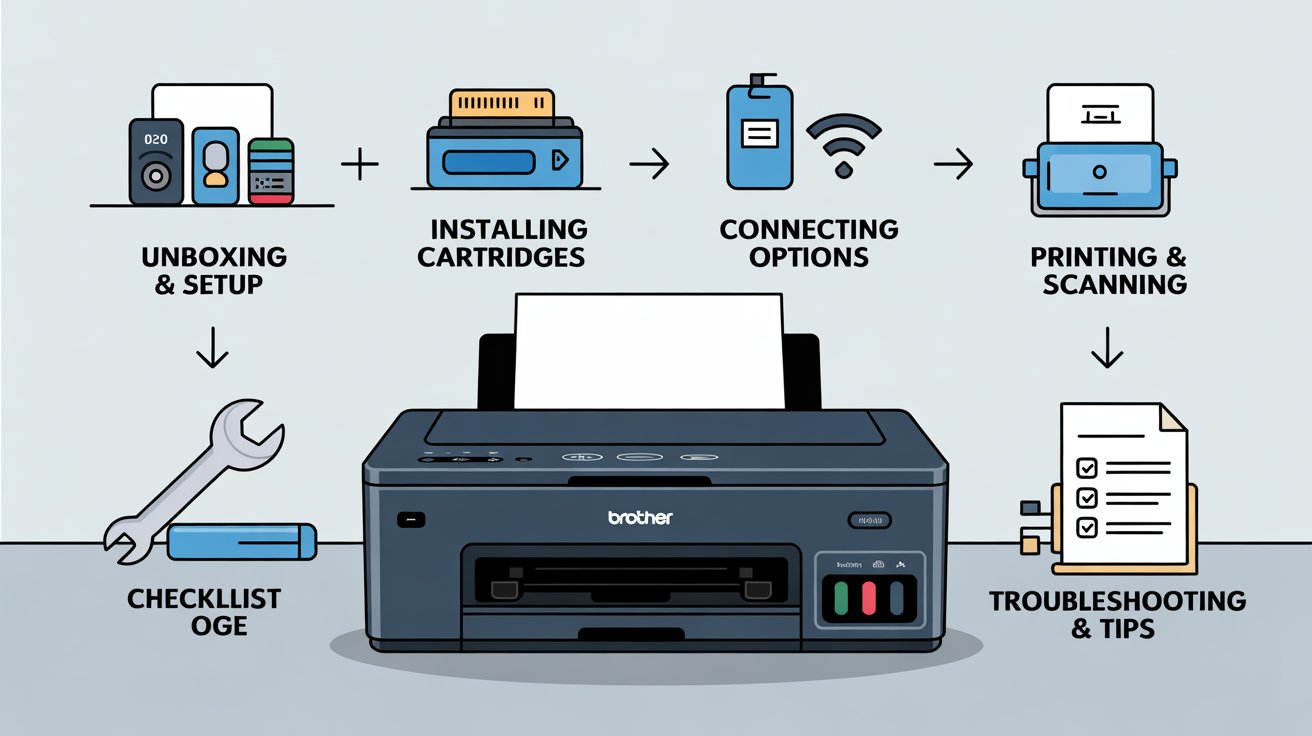
This article will walk you through the setup, connections, printing, scanning, troubleshooting, and useful tips — all explained in simple steps.
Step 1: Unboxing & Assembling Your Brother Printer
Before you can print, you’ll need to get your printer ready.
🛠️ Setup Steps:
- Open the box carefully and remove all packaging materials and tapes.
- Place the printer on a flat, stable surface near a power outlet.
- Connect the power cord to the printer and plug it into a wall socket.
- Turn on the printer using the Power button.
- Load paper into the input tray and adjust the paper guides.
👉 Tip: Always use the recommended paper type for your model to avoid jams.
Step 2: Installing Ink or Toner Cartridges
Brother printers use either ink cartridges (inkjet models) or toner cartridges (laser models).
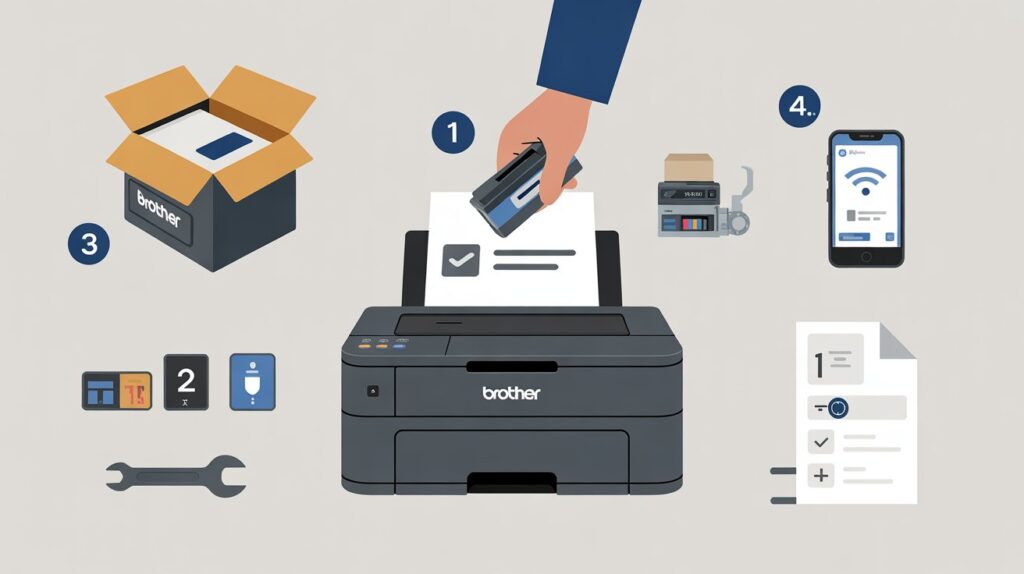
✨ How to Install Cartridges:
- Open the printer’s front cover or cartridge compartment.
- Remove protective seals from the new ink/toner.
- Insert the cartridge firmly into the slot until it clicks.
- Close the cover and let the printer run an initial cleaning cycle.
👉 Mistake to Avoid: Don’t touch the copper contacts or printhead nozzles on ink cartridges — this can cause errors.
Step 3: Connecting Your Brother Printer
Brother printers support multiple connection methods.
🔌 USB Connection (Wired)
- Connect the printer to your computer with a USB cable.
- Your computer should detect it automatically and install drivers (or prompt you to).
📶 Wi-Fi / Wireless Setup
- On the printer’s control panel, go to Menu > Network > WLAN > Setup Wizard.
- Select your Wi-Fi network and enter the password.
- Wait until the printer confirms connection.
📱 Mobile Device Connection
- AirPrint (iPhone/iPad): Just select the Brother printer when printing from any app.
- Brother iPrint&Scan app (Android/iOS): Download the app, connect to the same Wi-Fi network, and print directly.
👉 Tip: If your printer supports Wi-Fi Direct, you can print without a router by connecting your phone directly to the printer’s Wi-Fi signal.
Step 4: Installing Brother Printer Software & Drivers
For full functionality, you’ll need Brother drivers and software.
💻 On Windows:
- Visit the official Brother Support Website.
- Enter your printer model and download the driver package.
- Run the installer and follow the steps.
🍏 On Mac:
- Go to System Preferences > Printers & Scanners > + Add Printer.
- Choose your Brother printer from the list.
- Download any additional software if required.
👉 Pro Tip: Keep drivers updated to fix bugs and improve compatibility.
Step 5: Printing & Scanning with a Brother Printer
🖨️ Printing a Test Page
- On Windows: Go to Devices & Printers > Right-click Brother printer > Printer Properties > Print Test Page.
- On Mac: Go to Printers & Scanners > Options > Test Print.
📄 Scanning a Document (All-in-One Models)
- Place the document face-down on the scanner glass.
- Use the Brother Control Center software or iPrint&Scan app.
- Choose scan settings (color, resolution, file type).
- Save the scanned document to your computer or cloud.
⚙️ Common Print Settings
- Grayscale printing to save color ink.
- Duplex (double-sided printing) for saving paper.
- Draft mode for faster, less ink-heavy prints.
Step 6: Troubleshooting Basics
Even the best printers run into issues. Here’s how to fix the most common problems:
❌ Printer Not Detected
- Check USB/Wi-Fi connections.
- Restart both the printer and computer.
- Reinstall drivers if necessary.
🧻 Paper Jams
- Open the paper tray and gently remove stuck paper.
- Check for torn pieces left inside.
- Reload paper properly with guides aligned.
📶 Connectivity Issues
- Reconnect Wi-Fi by running the Setup Wizard.
- Ensure your device and printer are on the same Wi-Fi network.
- If still offline, restart your router.
Pros & Cons of Brother Printers
✅ Pros
- Reliable and durable machines.
- Affordable ink/toner compared to some brands.
- Wide range of models for home and office.
- Easy to set up with multiple connection options.
❌ Cons
- Some models are bulky.
- Third-party ink/toner may cause errors.
- Scanning speed can be slow in budget models.
Common Mistakes Beginners Make
⚠️ Using wrong paper size or type.
⚠️ Forgetting to remove protective seals from cartridges.
⚠️ Not updating printer firmware or drivers.
⚠️ Printing wirelessly without connecting to the same Wi-Fi.
👉 Avoid these mistakes to keep your Brother printer working smoothly.
Tips for Beginners
💡 Always keep printer software updated.
💡 Use genuine Brother cartridges for best results.
💡 Regularly clean the printer (rollers, scanner glass, printhead).
💡 Enable duplex printing to save costs.
Conclusion
Learning how to work a Brother printer may feel overwhelming at first, but once you go through the setup and printing steps, it becomes simple. Whether you’re printing homework, office reports, or family photos, Brother printers are versatile and reliable companions.
If you encounter problems, revisit the troubleshooting section or check the official Brother Support website for model-specific help.
FAQs
1. Why is my Brother printer not printing?
This usually happens due to low ink/toner, driver issues, or connection errors. Check cartridges, restart the printer, and reinstall drivers if needed.
2. How do I connect my Brother printer to Wi-Fi?
Go to Menu > Network > WLAN > Setup Wizard on your printer, select your Wi-Fi network, and enter the password.
3. Can I use my Brother printer with my phone?
Yes! You can print using AirPrint on iPhone/iPad or the Brother iPrint&Scan app on Android/iOS.
4. Why does my Brother printer keep going offline?
This can happen if your Wi-Fi signal is weak or if your device is on a different network. Reconnect to the correct Wi-Fi or restart the router.
5. Can I use non-Brother ink or toner?
Yes, but it may cause errors, reduce print quality, or void warranty. Genuine Brother supplies are recommended.
✅ Call to Action:
Now that you know how to work a Brother printer, try printing a test page today! If you’re setting up for the first time, bookmark this guide so you can troubleshoot easily whenever needed.