Meta Description: Frustrated with HP printers rejecting third-party cartridges? Learn common problems with how to get non HP ink cartridges to work and discover step-by-step fixes to save time and money.
🖨️ Introduction: Why Non-HP Cartridges Can Be a Problem
If you own an HP printer, you may have tried saving money by buying non-HP (third-party) ink cartridges. However, HP printers often reject these cartridges due to firmware updates or chip authentication systems.
This guide will walk you through common problems and provide step-by-step solutions to help you figure out how to get non HP ink cartridges to work.
⚠️ Why HP Blocks Non-HP Ink Cartridges
HP uses something called Dynamic Security in its printers. Here’s why your printer may reject third-party cartridges:
- 🔒 Chip authentication – HP cartridges have built-in chips that verify authenticity. Non-HP cartridges may not pass this check.
- 🔄 Firmware updates – Printer updates can block previously working third-party cartridges.
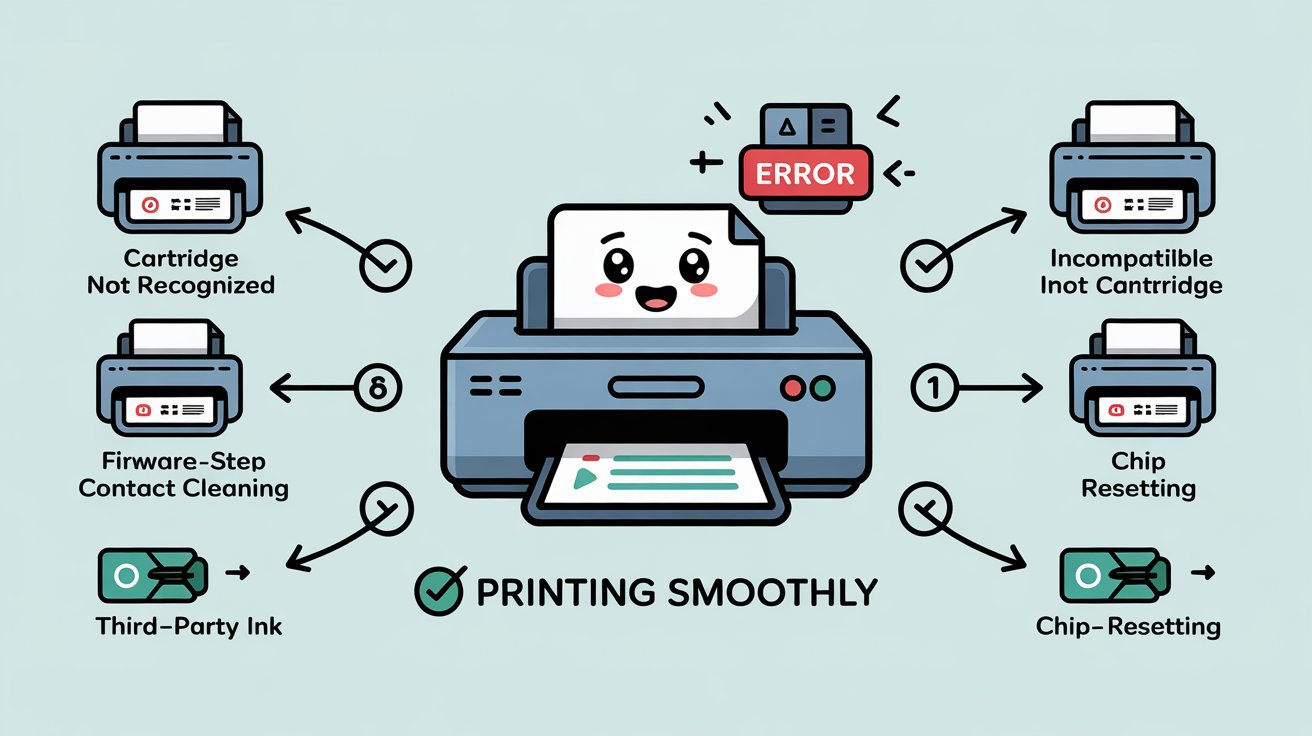
- ❌ Error codes – Your printer may show messages like “Cartridge not recognized” or “Incompatible cartridge installed.”
🛑 Common Error Messages with Non-HP Cartridges
Here are some errors you may see:
- “Cartridge missing or damaged.”
- “Used or counterfeit cartridge detected.”
- “Incompatible cartridge.”
- “Printer will not print using these cartridges.”
🔧 Step-by-Step Fixes for How to Get Non HP Ink Cartridges to Work
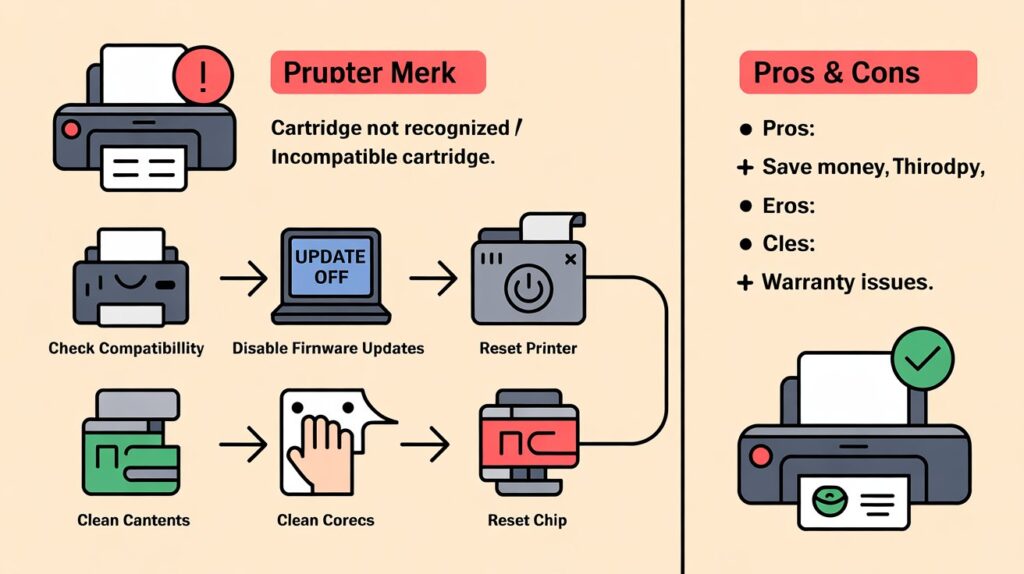
1. ✅ Check Cartridge Compatibility
- Make sure the cartridge model matches your HP printer series.
- Double-check if your printer firmware supports the cartridge.
- Sometimes, a non-HP cartridge works in older firmware versions but not after an update.
2. 🔄 Disable Printer Firmware Updates
HP updates can block third-party ink. To stop this:
- Go to your printer’s control panel.
- Navigate to Settings > Printer Maintenance > Update Printer > Printer Update Options.
- Select “Do not update” or “Notify before updating.”
- On your computer, disable automatic firmware updates from HP Smart app.
👉 Note: Disabling updates can help, but you might miss security patches.
3. 🧽 Clean Cartridge Contacts
Dust or ink residue can block recognition.
Steps:
- Turn off your printer.
- Remove the cartridge.
- Use a lint-free cloth with a drop of distilled water or rubbing alcohol.
- Gently clean the copper contacts.
- Reinsert and restart the printer.
4. 🔁 Reset the Printer
Resetting sometimes clears cartridge detection errors.
- Unplug your printer from power.
- Wait 1–2 minutes.
- Plug back in and restart.
- Reinstall cartridges.
5. 🖲️ Use Cartridge Reset Chips (if allowed)
Some third-party suppliers provide reset chips that bypass HP’s authentication system.
- Replace the chip on your cartridge with a reset chip.
- Insert into printer.
⚠️ Be cautious: This may void your printer warranty.
6. 🧩 Install Older Firmware (Advanced Fix)
If your printer stopped accepting non-HP cartridges after an update, you can sometimes roll back to older firmware from HP’s support site.
- Search your printer model on HP’s website.
- Download an earlier firmware version.
- Install manually via USB.
7. 📦 Try a Different Supplier
Not all third-party cartridges are equal. Some suppliers update chips regularly to stay compatible with HP printers.
- Look for well-reviewed, reputable third-party brands.
- Check customer reviews to ensure they work with your printer model.
📊 Troubleshooting Table
| Problem | Cause | Fix |
|---|---|---|
| Cartridge not recognized | Firmware update | Disable updates / roll back firmware |
| Error: “Incompatible cartridge” | Chip authentication | Use reset chip / try another supplier |
| Cartridge missing or damaged | Dirty contacts | Clean contacts with lint-free cloth |
| Printer won’t print | Reset needed | Restart printer / reseat cartridge |
| Frequent errors | Low-quality cartridges | Use a reliable third-party brand |
🌟 Pros & Cons of Using Non-HP Cartridges
👍 Pros
- 💰 Cost savings – Often 50% cheaper than genuine HP ink.
- 🌍 Eco-friendly options – Many third-party brands use recycled cartridges.
- 🔄 Variety – Wide selection of suppliers.
👎 Cons
- ❌ Printer errors – May not always be recognized.
- 🛑 Warranty issues – Could void HP printer warranty.
- 🎨 Print quality risks – Colors may not match genuine ink.
- 🔄 Firmware conflicts – Updates may disable them anytime.
📌 When to Switch Back to Genuine HP Cartridges
- If you print important documents (legal, official).
- If errors persist even after troubleshooting.
- If print quality is crucial (photography, presentations).
🙋 FAQs about How to Get Non HP Ink Cartridges to Work
1. Why won’t my HP printer recognize non-HP cartridges?
Because of firmware updates and chip authentication that block third-party cartridges.
2. Is it safe to use third-party ink in my HP printer?
Yes, but it may cause compatibility issues or void your warranty.
3. How do I bypass HP cartridge protection?
Disable updates, clean contacts, or use reset chips.
4. How do I get my HP printer to work with cheap ink?
Use compatible cartridges, disable updates, and clean regularly.
5. Will older HP printers accept non-HP cartridges more easily?
Yes, older models are often less strict with cartridge authentication.
✅ Summary
Figuring out how to get non HP ink cartridges to work can save you a lot of money, but it requires patience.
- Check compatibility.
- Disable updates.
- Clean and reset your printer.
- Use reliable suppliers.
If nothing works, you may need to switch back to genuine HP cartridges for peace of mind.
📢 Call to Action
Tired of constant cartridge issues? Before giving up on third-party ink, try the troubleshooting steps above. If you find a reliable non-HP brand that works for your printer, you’ll enjoy big savings without losing print quality.