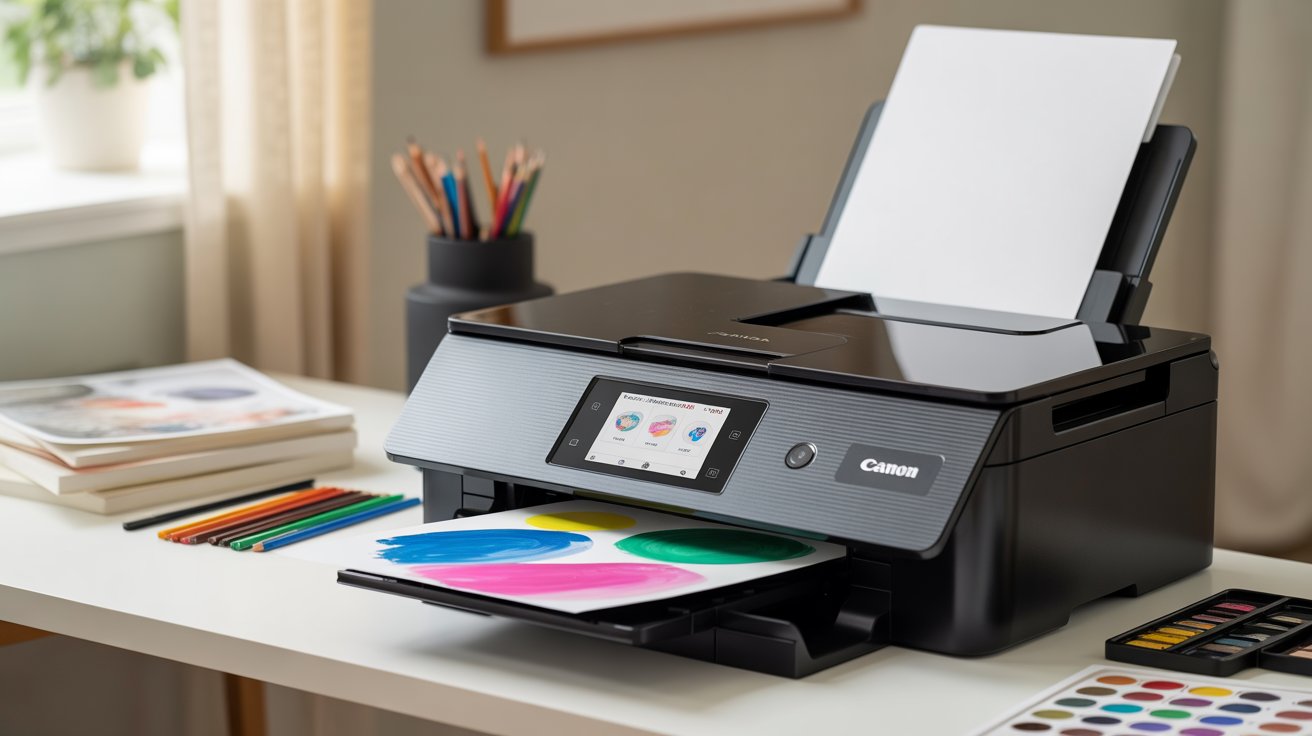
If you’ve just bought a Canon printer or are struggling to set it up, you’re not alone. Many new users wonder “how to work a Canon printer” correctly for the first time. Whether you want to print wirelessly, connect to WiFi, or print directly from your phone, this guide will walk you through everything step by step.
We’ll also cover tips, pros & cons, common mistakes, and FAQs to make sure you get the best out of your Canon printer.
✅ Step 1: Unbox and Set Up Your Canon Printer
Before you start printing, you need to prepare your Canon printer.
- 📦 Open the box carefully – Take off all protective tapes, plastics, and coverings.
- ⚡ Plug in the power cord and press the power button.
- 🖨️ Install ink cartridges following the on-screen or manual instructions.
- 📄 Load paper into the tray (A4 or the size you’ll print on).
- 🔧 Run initial setup – Most Canon printers will align cartridges automatically when first powered on.
💡 Tip: Place the printer on a level surface with sufficient space around it for loading paper and proper airflow.
✅ Step 2: How to Work a Canon Printer Wirelessly
Wireless printing is one of the best features of modern Canon printers. Here’s how you can set it up:
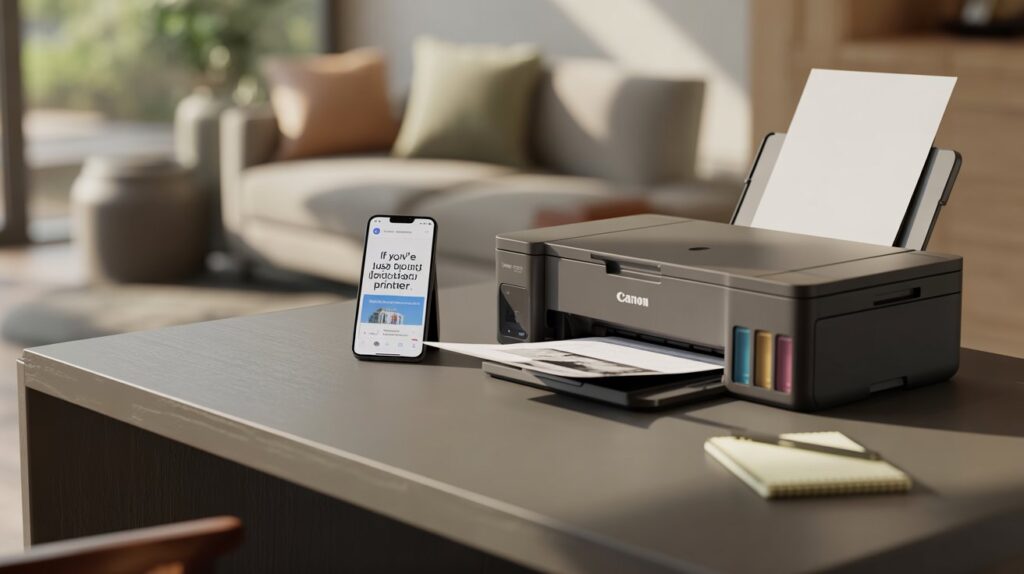
- 📶 Turn on Wi-Fi on your Canon printer (press the wireless/Wi-Fi button).
- 📡 Open the Wi-Fi setup through the printer’s menu or control panel.
- 🔍 Select your Wi-Fi network and enter the password.
- 💻 Connect your laptop or PC to the same Wi-Fi network.
- ➕ Add your Canon printer from your computer settings:
- On Windows: Go to Settings > Devices > Printers & Scanners > Add printer.
- On Mac: System Preferences > Printers & Scanners > + button.
Now you can print wirelessly without plugging in any cables.
✅ Step 3: How to Print on Canon Printer from Phone 📱
Printing directly from your smartphone is easy with Canon’s apps and mobile support.
- 📲 Download the Canon PRINT app from the App Store (iPhone) or Google Play (Android).
- 📶 Ensure both your phone and printer are connected to the same Wi-Fi network.
- 🖼️ Open the file or photo you want to print.
- 🖨️ Select “Print” and choose your Canon printer from the list.
- ⚙️ Adjust settings (paper size, orientation, copies).
- ✅ Tap Print and wait for the output.
💡 Pro Tip: iPhone users can also use AirPrint directly without installing any extra app.
✅ Step 4: How to Connect Canon Printer to WiFi
If you skipped WiFi setup during installation, don’t worry. You can connect anytime:
- Hold down the Wi-Fi button on your printer until the light starts flashing.
- Go to your Wi-Fi router and press the WPS button within 2 minutes.
- The printer and router will connect automatically.
- Once connected, the Wi-Fi indicator will stop blinking and stay solid.
This is the WPS method—fast and convenient.
✅ Step 5: How to Use Canon Printer with Laptop 💻
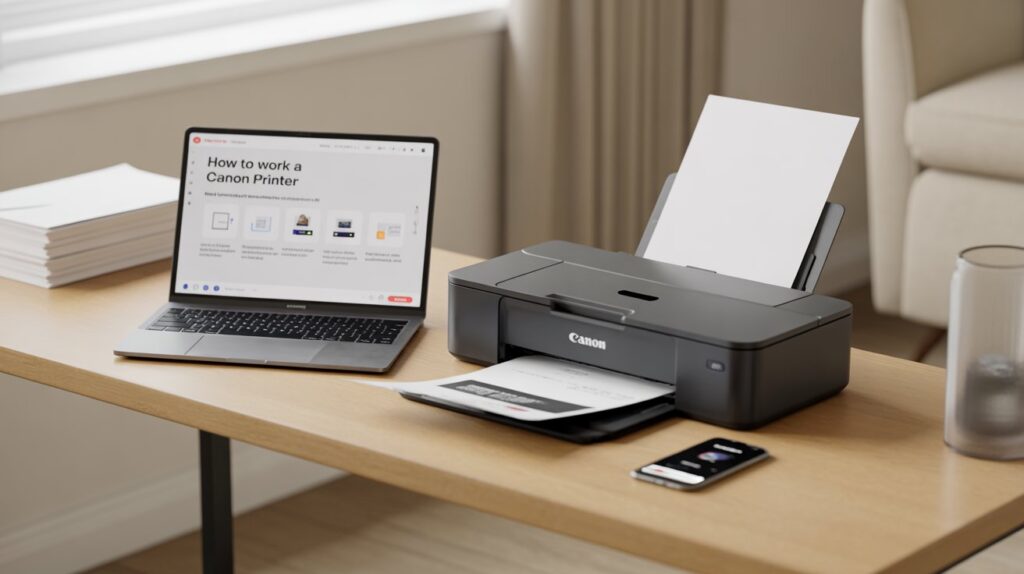
To print from your laptop:
- Connect your Canon printer to the laptop via USB cable or Wi-Fi.
- Install the Canon drivers/software (usually comes with a CD or download from Canon’s website).
- Go to Control Panel > Devices and Printers (Windows) or Printers & Scanners (Mac).
- Add your Canon printer if not already listed.
- Open your document, click File > Print, and select your printer.
✅ Step 6: How Do I Get My Canon Printer to Print?
If your Canon printer is not printing, try these quick fixes:
- 🛠️ Check connections – Ensure it’s connected to Wi-Fi or USB.
- 🖨️ Set as default printer in your device settings.
- 🖋️ Check ink levels – Refill or replace cartridges if empty.
- 📄 Inspect the paper tray – Ensure the paper is placed properly.
- 🔄 Restart both printer and device – Often solves temporary issues.
⭐ Pros of Using a Canon Printer
- ✅ High-quality printing (great for documents & photos).
- ✅ Variety of models available for home, office, and professional needs.
- ✅ Easy wireless and mobile printing options.
- ✅ Canon PRINT app and AirPrint compatibility.
- ✅ Affordable cartridges and ink tank options.
⚠️ Cons of Using a Canon Printer
- ❌ Initial setup can be confusing for beginners.
- ❌ Ink cartridges can be costly if not using an ink tank model.
- ❌ Wi-Fi connectivity may sometimes drop.
- ❌ Slower printing speed on entry-level models.
🚫 Common Mistakes to Avoid
- Forgetting to connect printer and device to the same Wi-Fi network.
- Not installing the latest Canon drivers/software.
- Using low-quality paper that causes jams.
- Ignoring firmware updates that improve performance.
🙋 FAQs
1. How to work a Canon printer wirelessly?
To use your Canon printer wirelessly, connect it to your Wi-Fi network using the setup button or WPS. Then, add the printer on your computer or phone connected to the same network.Next, connect the printer to your computer or phone that’s on the same network.
2. How to print on Canon printer from phone?
Download the Canon PRINT app or use AirPrint (iPhone). Select your printer, choose the file or photo, and tap Print.
3. How do I get my Canon printer to print if it’s not working?
Check your Wi-Fi/USB connection, ink levels, paper tray, and printer settings. Restart the printer and device. If the issue continues, reinstall the drivers.
🎯 Final Thoughts
Learning how to work a Canon printer isn’t complicated once you know the step-by-step process. From Wi-Fi setup to mobile printing, Canon offers flexible solutions for home, school, and office use.
By following this guide, you’ll be able to print smoothly, avoid common mistakes, and make the most out of your Canon printer.