In today’s wireless world, knowing how to connect my HP printer to my laptop wirelessly can free you from messy cables and provide the convenience of printing from any location your home or office. Whether you’re using Windows, macOS, or even a smartphone, this guide is designed to help you connect with ease.
Below, you’ll discover detailed steps, troubleshooting tips, and answers to related queries like how does a wireless printer work with a laptop, how to connect HP printer to WiFi without screen, and even how to wirelessly connect your iPhone to a printer.
Table of Contents
🖨️ How Does a Wireless Printer Work?
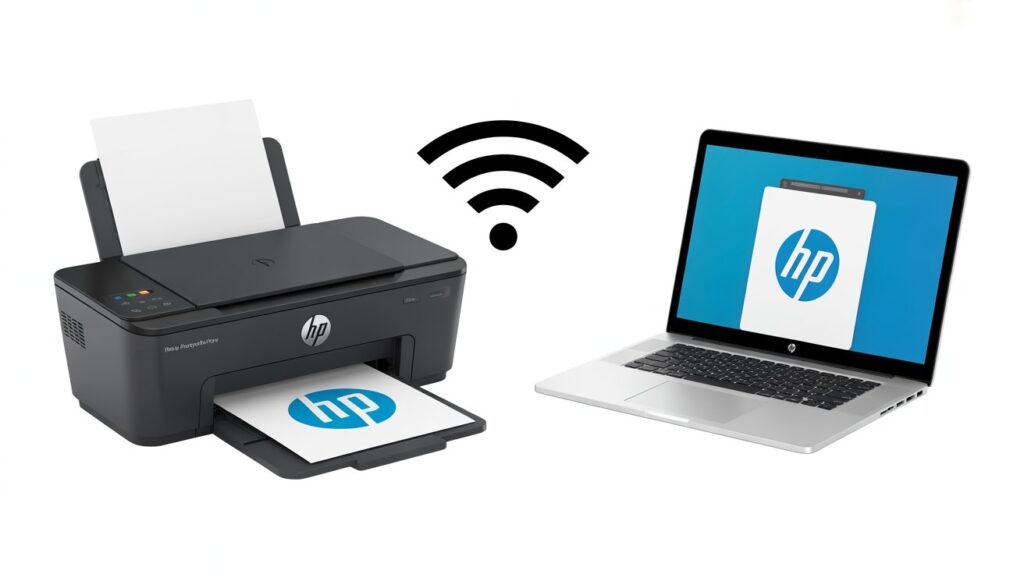
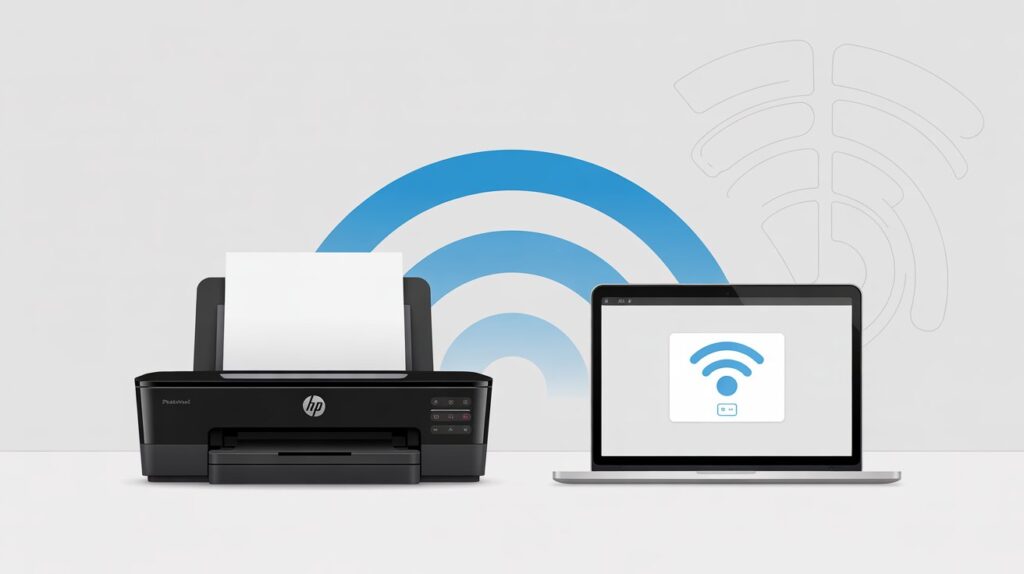
A wireless printer connects to your WiFi network, allowing multiple devices (laptops, smartphones, tablets) to print without being physically connected to the printer. Here’s how it works:
- The printer connects to your home or office WiFi router.
- Your laptop also connects to the same WiFi network.
- When you hit “Print,” the laptop sends data over WiFi to the printer.
Wireless printing is not only convenient but also saves space and supports mobile printing.
🧩 Step 1: Prepare Your HP Printer for Wireless Connection
Before we move to laptop settings, make sure your printer is ready:
- Plug in and turn on the HP printer.
- Place it close to your WiFi router (temporarily) to ensure a strong signal.
- Make sure your WiFi is active and working correctly.
If your printer has a display screen:
- Use the Wireless Setup Wizard:
- Navigate to Settings > Network > Wireless Setup Assistant
- Select your WiFi network and enter the password.
❌ How to Connect HP Printer to WiFi Without Screen
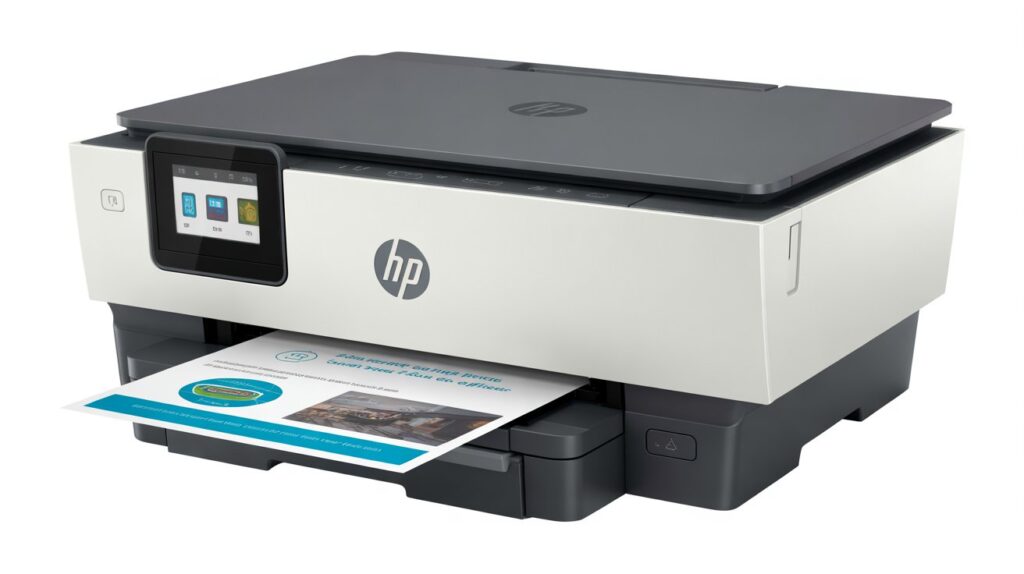
If your HP printer doesn’t have a display screen, use WPS (WiFi Protected Setup):
- Push the WPS button on your WiFi router.
- In 2 minutes, press and hold the Wireless button on your printer until the indicator light starts blinking.
- Wait until the light stops blinking and remains solid—this confirms WiFi connection.
Alternatively, use the HP Smart App:
- Download HP Smart on your laptop or smartphone.
- Open the app and add a new printer.
- Follow on-screen instructions to connect the printer wirelessly.
💻 How to Connect My HP Printer to My Laptop Wirelessly (Windows)
Once your printer is on the WiFi network, you can now connect it to your laptop:
For Windows Users:
- Select the Start Menu > Settings > Devices > Printers & Scanners.
- Click Add a printer or scanner.
- Windows will search and display available printers.
- Select your HP printer and then choose Add Device.
✅ Done! Your HP printer is now connected to your laptop via wireless network.
🍏 How to Add a Wireless Printer on Mac
For macOS users, follow these steps:
- Go to System Preferences > Printers & Scanners.
- Click the
+button to add a printer. - Wait for your HP wireless printer to appear.
- Select it and click Add.
💡 Make sure your Mac is connected to the same WiFi network as your printer.
📱 How to Connect iPhone to Printer Wireless
Mobile printing is a breeze with HP wireless printers. Here’s the process for doing it on your iPhone:
- Make sure your HP printer and iPhone are on the same WiFi network.
- Open the document or image you want to print.
- Tap the Share icon > Print.
- Select your HP printer.
- Tap Print.
You can also use the HP Smart App from the App Store for more features.
⚙️ How to Install a WiFi Printer Using HP Smart App
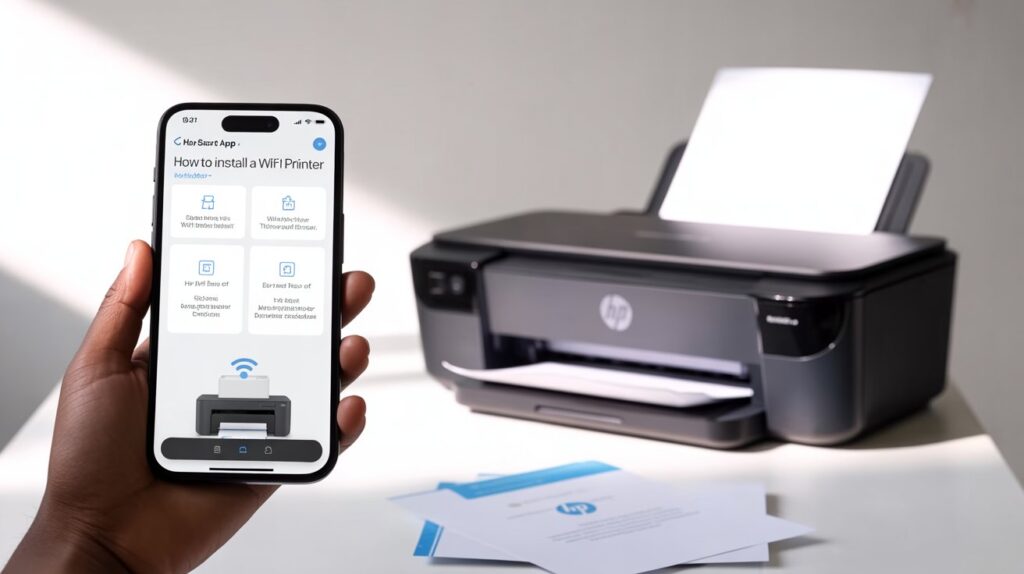
HP Smart App is a user-friendly way to install and manage your HP printer wirelessly.
Steps:
- Download and install HP Smart from HP’s official site or your device’s app store.
- Launch the app and either sign in or set up a new HP account.
- Click Add Printer.
- The app will detect printers that are on the same network automatically.
- Follow prompts to connect and finish the setup.
Bonus: You can print, scan, and manage ink levels right from the app.
🔄 How to Add a Wireless Printer to a Laptop – Alternate Method
If Windows or Mac doesn’t auto-detect your printer, try adding it manually:
Windows:
- Go to Settings > Devices > Printers & scanners.
- Click The printer that I want isn’t listed.
- Choose Add a printer using TCP/IP address.
- Enter your printer’s IP address (check your router’s connected devices list).
Mac:
- Go to System Preferences > Printers & Scanners.
- Click
+> IP tab. - Enter the printer’s IP address and click Add.
🔧 Troubleshooting Wireless Printer Connection Issues
If you’re still asking “how to connect my HP printer to my laptop wirelessly” and facing issues, try the following:
- Restart your printer, laptop, and router.
- Ensure both devices are on the same network.
- Disable any VPN or firewall temporarily.
- Reset the printer’s network settings and try again.
- Use the HP Print and Scan Doctor for Windows.
✅ Final Checklist for Wireless Printer Setup
| Step | Action |
|---|---|
| 1 | Power on the printer and laptop |
| 2 | Connect printer to WiFi (via display, WPS, or HP Smart App) |
| 3 | Add printer to laptop via system settings or HP Smart App |
| 4 | Test print a page |
| 5 | Troubleshoot if needed |
🛒 Recommended HP Wireless Printers on Amazon
Here are top-rated HP wireless printers that are perfect for wireless printing at home or office:
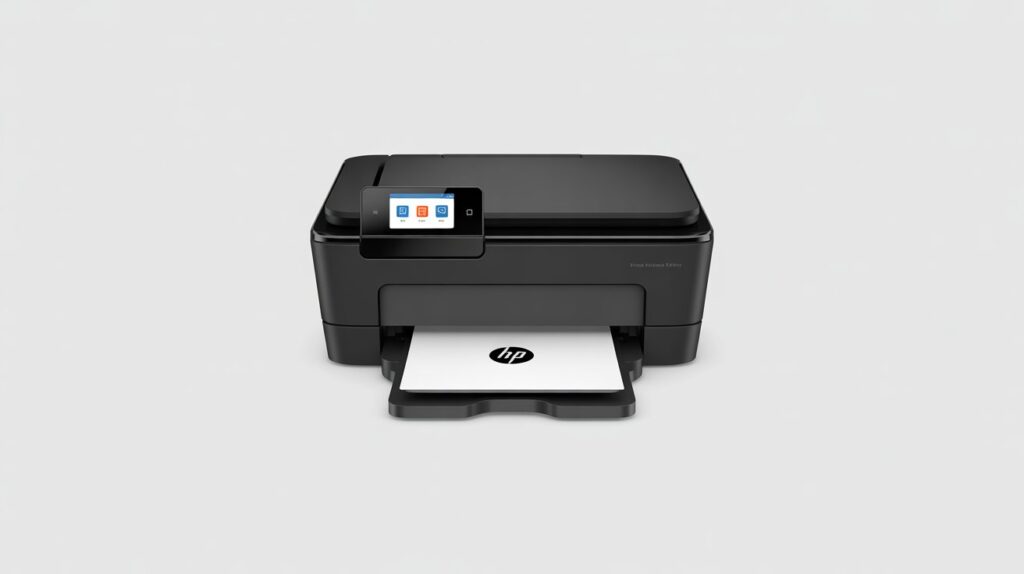
1. HP ENVY 6055e Wireless Color Printer
- Great for home use
- Supports mobile printing
- Easy setup with HP Smart App
Check Price on Amazon
2. HP OfficeJet Pro 9015e Wireless All-in-One
- Ideal for small businesses
- Fast printing and scanning
- Dual-band WiFi
View on Amazon
3. HP DeskJet 4155e All-in-One Wireless Printer
- Budget-friendly
- Supports wireless, mobile, and voice-activated printing
Shop on Amazon
🎯 Conclusion: Effortlessly Connect Your HP Printer Wirelessly
By now, you should feel confident about how to connect my HP printer to my laptop wirelessly. Whether you’re using a screenless model, a MacBook, or even your iPhone, wireless printing is now just a few steps away.For easy printing, use the HP Smart App and ensure both your devices are connected to the same network for smooth operation.
Looking to buy a new HP wireless printer? Check out the recommended models above and make your printing experience smarter and simpler.
📦 Ready to Print? Browse HP Printers on Amazon Now
FAQs:
1. How do I get my laptop to recognize my Wireless printer?
To get your laptop to recognize your wireless printer, ensure both devices are connected to the same WiFi network. Then go to your laptop’s printer settings and select “Add Printer.” Choose your printer from the list and follow prompts.
👉 Find Compatible Wireless Printers on Amazon
2. How do I reconnect my HP Wireless printer wirelessly?
To reconnect your HP wireless printer, restart the printer and press the Wireless button. Use the HP Smart App or the Wireless Setup Wizard to reconnect it to your WiFi network. Ensure your laptop or device is on the same network.
👉 Shop HP Wireless Printers on Amazon
3. How do wireless printers work with laptops?
Wireless printers connect to your home or office WiFi network, allowing laptops on the same network to send print jobs without cables. Simply install the printer, add it through system settings, and print wirelessly anytime. It’s fast, efficient, and clutter-free.
👉 Explore Wireless Printers on Amazon
4. Will a wireless printer work without internet?
Yes, a wireless printer can work without internet if it’s connected to your laptop via WiFi Direct or local network. As long as both devices are on the same network or connected directly, you can print without internet access.
👉 Browse WiFi Direct Printers on Amazon
5. How to connect printer to Wi-Fi without screen wirelessly?
To connect a screenless printer to Wi-Fi, use the WPS method: first press the WPS button on your router, then press and hold the Wireless button on your printer. Alternatively, use the HP Smart App for setup via mobile or laptop.
👉 Check Compatible HP Printers on Amazon
6. What is the difference between a WiFi printer and a wireless printer?
A Wi-Fi printer links straight to your home or office wireless network, enabling multiple devices to send print jobs. A wireless printer may use WiFi, Bluetooth, or WiFi Direct. All WiFi printers are wireless, but not all wireless printers use standard WiFi networks.
👉 Compare Wireless Printers on Amazon
7. How do you add a wireless printer to your Mac?
To set up a wireless printer on your Mac, open System Preferences > Printers & Scanners, click the + icon, and choose your printer from the list. Ensure that both your Mac and printer are connected to the same Wi-Fi network. Follow the prompts to complete setup.
👉 Find Mac-Compatible Printers on Amazon
8. Why is my Mac not recognizing my wireless printer?
If your Mac isn’t recognizing your wireless printer, ensure both are connected to the same WiFi network. Restart your router, printer, and Mac. Update printer drivers and try adding the printer manually in System Preferences. Also, check for macOS compatibility issues.
👉 Get Mac-Compatible Printers on Amazon
9. How do I get my iPhone to recognize a wireless printer?
To get your iPhone to recognize a wireless printer, ensure both devices are on the same WiFi network. Open the document or photo, tap the Share button > Print, and choose your printer. If it doesn’t appear, use the HP Smart App for setup.
👉 Shop iPhone-Compatible Printers on Amazon
10. Where can I find printer settings on an iPhone?
Printer settings on an iPhone are accessed through the Print option within apps. Launch the file or photo, tap the Share button, and then select Print. From there, you can select the printer, number of copies, and more. iPhones don’t have a standalone printer settings menu.
👉 Find AirPrint-Ready Printers on Amazon